YAML Editor
Overview
Besides the graphical form, K8s Sentinel offers two YAML-oriented workflows for different situations:
- (a) Direct YAML editing: click "+ New YAML" on the Tracing Policy list page and write or paste a complete TracingPolicy manifest in a full-screen editor
- (b) Generated YAML live preview: the panel on the right side of the form editor shows the YAML produced from the form fields in real time
YAML Editor (Direct Editing)
Clicking "+ New YAML" on the list page opens a full-screen dark-themed YAML code editor.
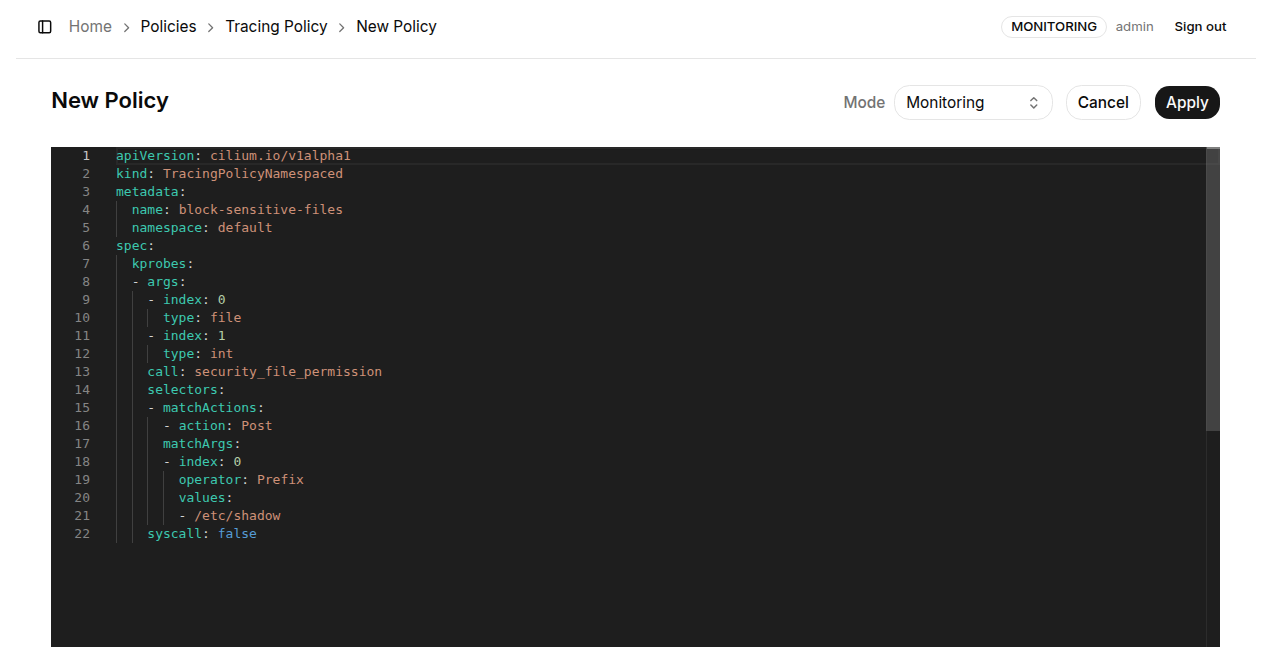
Usage:
- Type or modify the TracingPolicy YAML directly; pasting a complete manifest from an external source is supported
- The editor provides syntax highlighting and line numbers
- The editor (Monaco) is bundled in the K8s Sentinel image and served by K8s Sentinel itself, so it needs no internet connection and works in air-gapped clusters too (v0.59.5+; the same applies to the YAML editors for Tracing Policy, Templates, Admission Policy and Network Policy)
- The Mode dropdown in the top-right corner sets the policy's execution mode (
Monitoring/Protect) - Click "Apply" when done
How it works: the K8s Sentinel backend validates the YAML against the cilium.io/v1alpha1 schema - checking field structure and required fields - before creating or updating the TracingPolicy resource through the Kubernetes API Server. If the YAML is invalid, the page shows an error message pointing at the problem.
Generated YAML (Live Preview)
When using the form editor ("+ New Policy" or "Edit"), the right side of the page always shows the Generated YAML panel (dark background) with the resulting resource kind (TracingPolicy or TracingPolicyNamespaced) badged in the corner.
Notes:
- Every change in the form (Pod Selector, Process Rules, File Rules) is reflected in the panel immediately
- The preview is computed entirely in the frontend - no backend round-trip
- Clicking "Apply" submits exactly the YAML shown in this panel