User Management
About This Feature
The User Management page provides administration for K8s Sentinel dashboard local accounts, including creating users, changing passwords, and configuring session timeout. K8s Sentinel uses JWT (JSON Web Token) for authentication, and all account data is stored in the local database.
Viewing the User List
Navigate to "Settings → Users" to see all current user accounts.
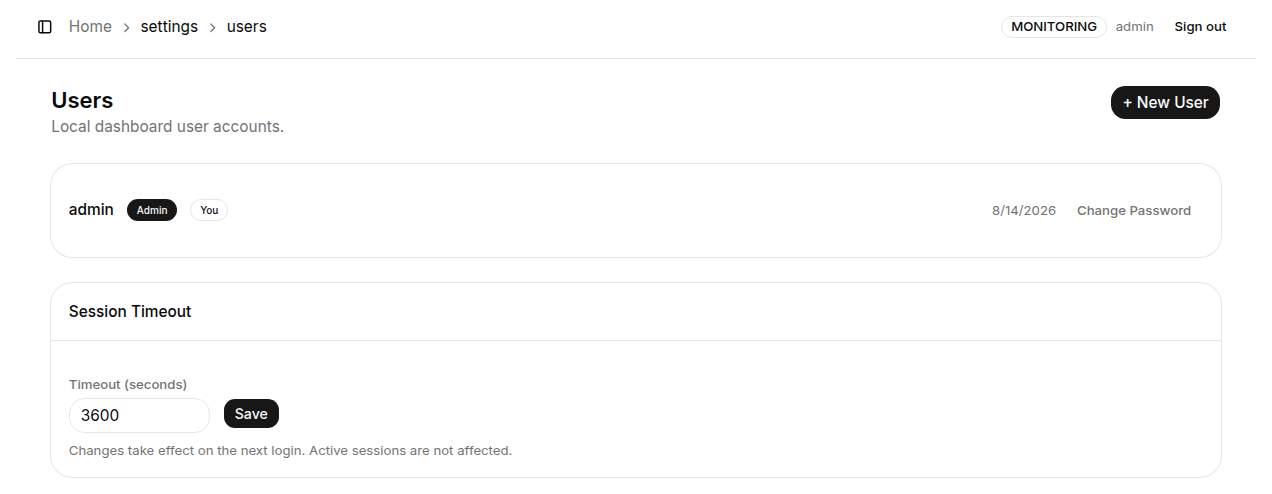
Column descriptions:
| Column | Description |
|---|---|
| Username | The login account name |
| Role | User role (admin or viewer) |
| Created date | When the account was created |
| Change Password | Button to update the account's login password |
Changing a Password
Click "Change Password" on an account row to open the dialog:
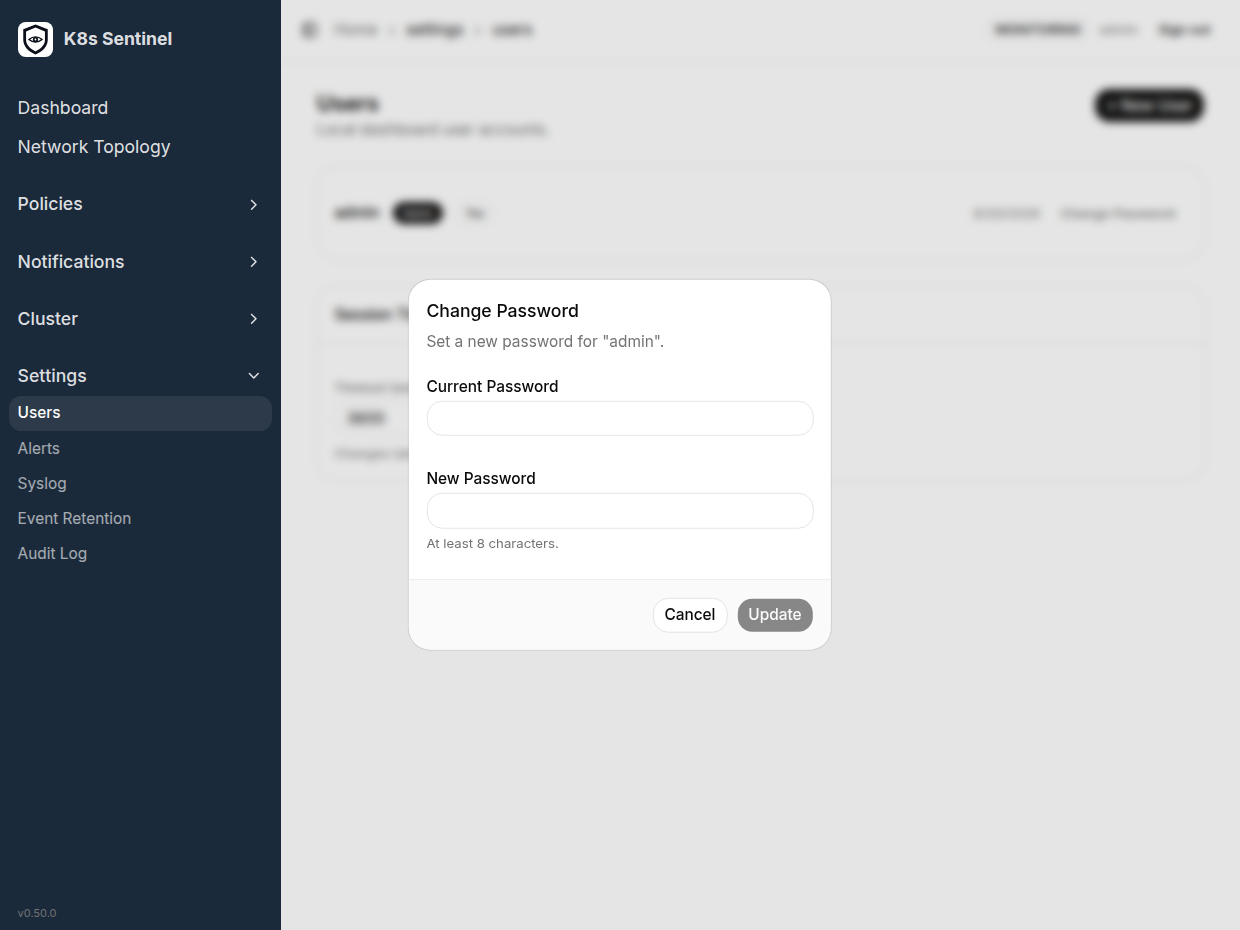
Password security rules (v0.47+):
- New passwords must be at least 8 characters (enforced server-side)
- Changing your own password requires the current password, so a hijacked session cannot silently lock the owner out (one exception: the forced first-login change screen skips it, v0.58.1)
- An admin resetting another account's password is a separate action that does not need the old one, but is audited all the same
- Every password change, including an attempt rejected for a wrong current password, is recorded in the Audit Log
Also note: the first sign-in with the default admin / admin forces a password change - see Sign In to K8s Sentinel.
Creating a New User
Click "+ New User" in the top-right corner to open the new-user page (since v0.42 every editor has its own URL - bookmarkable, and F5 stays on the editor).
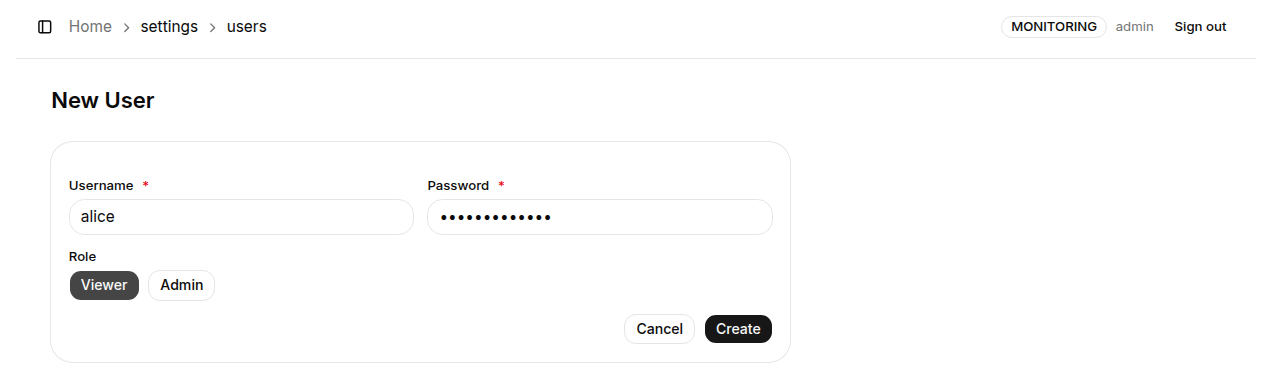
Form fields:
| Field | Required | Description |
|---|---|---|
| Username | ✅ | Login account name - cannot be changed after creation |
| Password | ✅ | Initial password - recommend the user change it after first login |
| Role | ✅ | Select admin (full access) or viewer (read-only) |
Click "Create" to create the account.
Role Descriptions
| Role | Description |
|---|---|
| admin | Full system access - can create, modify, and delete all policies, manage users, and change system settings |
| viewer | Read-only access - can browse all pages and data but cannot add, modify, or delete anything |
Session Timeout
The Session Timeout section at the bottom of the page lets you configure how long a JWT token remains valid (in seconds).
| Setting | Description |
|---|---|
| Timeout (seconds) | JWT token lifetime - default is 3600 (1 hour) |
Click "Save" to apply the new value.
Session Timeout changes take effect on the next login. Active sessions are not affected - users must log out and back in for the new timeout to apply.
Since v0.64, when an account is deleted or its password changes, its existing sessions end immediately and return to the sign-in page; the role is also read from the account as it is now, not from the role recorded in the token.