Registry Scanning (Registries)
Overview
The Workloads page covers the images that are running; "Vulnerabilities → Registries" (since v0.62) covers the images that could be deployed: the images stored in a registry are scanned before any workload uses them.
Trivy Operator only looks at workloads in the cluster, so here the scans are started by K8s Sentinel itself: each image is scanned by one short-lived Trivy Pod in sentinel-system.
Supported registry types:
| Type | Example URL |
|---|---|
| Harbor | https://harbor.example.com |
| Docker Registry (self-hosted) | https://registry.hub.docker.com |
| Quay (quay.io) | https://quay.io |
This page only reports results, and it does not yet mark which registry images are running in the cluster. To refuse the deployment of images by these results, see Refusing Vulnerable Images: registry scan results are what lets an image be checked before its first deployment.
Adding a Registry
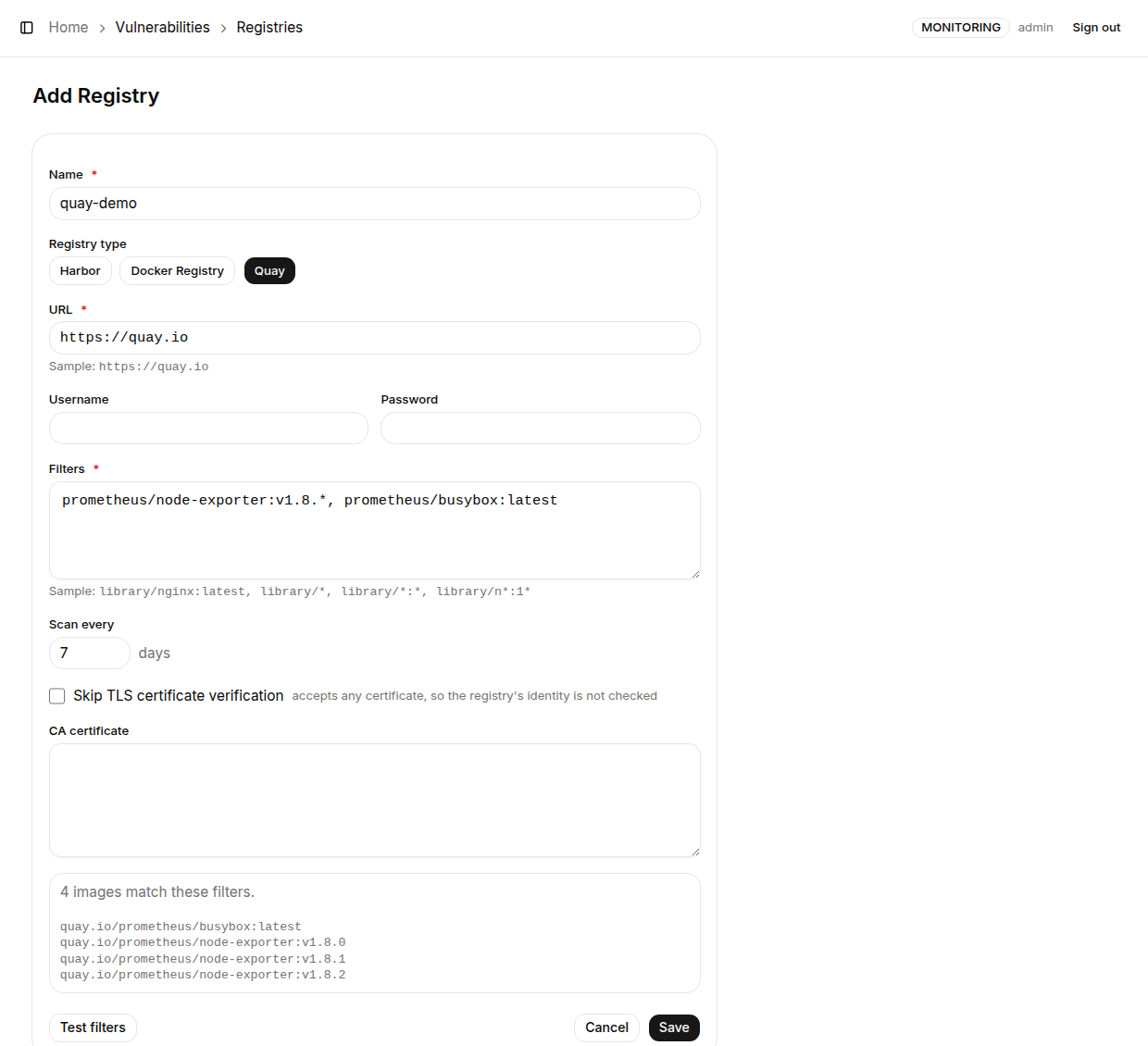
Open "Vulnerabilities → Registries" and click "+ Add Registry" in the top-right corner (visible to Admins only).
| Field | Required | Description |
|---|---|---|
| Name | ✅ | Display name of the registry |
| Registry type | - | Harbor / Docker Registry / Quay; the example below the URL field changes with the type |
| URL | ✅ | The registry address |
| Username / Password | - | Optional login credentials |
| Filters | ✅ | Decide which images are scanned, see the next section |
| Scan every N days | - | The schedule interval, 1 to 30 days |
| Skip TLS certificate verification | - | Accept any certificate, that is, do not check the registry's identity at all |
| CA certificate | - | Paste the contents of your own CA's ca.pem (v0.63+); this field is hidden when skipping verification is checked |
After you click "Save", the registry's first scan starts immediately.
A Registry With a Certificate Issued by Your Own CA
Since v0.63 you no longer need to check Skip TLS certificate verification: paste the contents of the CA's ca.pem into CA certificate, and the registry is verified against this CA both when K8s Sentinel lists the registry contents and when the scan Pods pull images. The CA is added to the list of publicly trusted CAs, not swapped for it, so a scan can still download the vulnerability database.
Filters Syntax
Filters are written as repository or repository:tag, with * as a wildcard; they can be one per line or separated by commas (v0.63.1+), for example library/*, team/*, ops/app:v1.*.
| Example | Meaning |
|---|---|
library/* | Every image in the project library |
team/app | Every tag of a single repository |
team/app:v1.* | The v1 series of tags of that repository |
library/*:latest | The latest tag in each repository that has one |
On Harbor and quay.io, the project or organization before the first slash has to be written out in full, because that is the unit these two registries can list.
Before saving you can click "Test filters": it only lists the registry contents without scanning, and reports how many images match along with some samples.
Scan Schedule and Limits
| Item | Description |
|---|---|
| When scans run | When the registry is added, after every edit, and then at the configured interval (1 to 30 days); you can also click "Scan now" at any time |
| 500 images per scan | Every image is a Pod that has to download the vulnerability database, so a single scan stops at 500. When the Filters match more, the page shows how many were skipped; narrow the Filters or split them across several registry entries |
| 3 scans run at a time | Across all registries combined, so a large registry takes a while. Results appear as each image finishes, and the previous results are kept until then |
| 13 minutes per image scan | Since v0.63.3; earlier versions used Trivy's default of 5 minutes, and larger images failed with context deadline exceeded |
Viewing Results
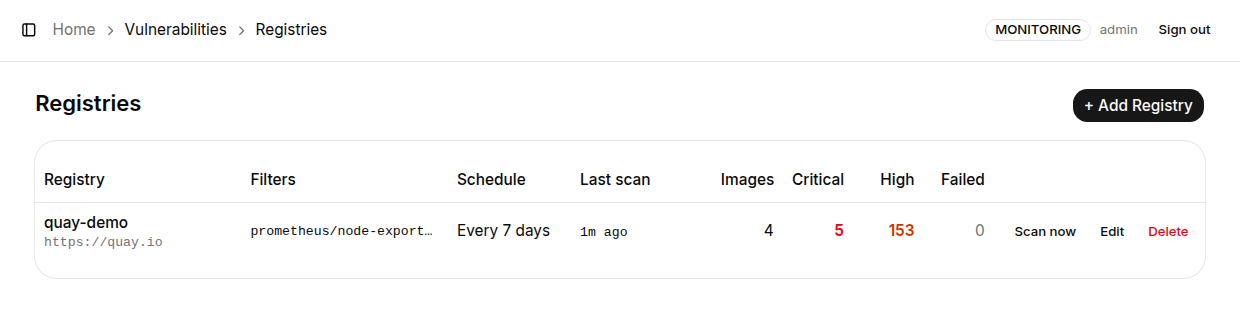
The Registries list columns are Registry, Filters, Schedule, Last scan, Images, Critical, High and Failed, and each row offers Scan now, Edit and Delete.
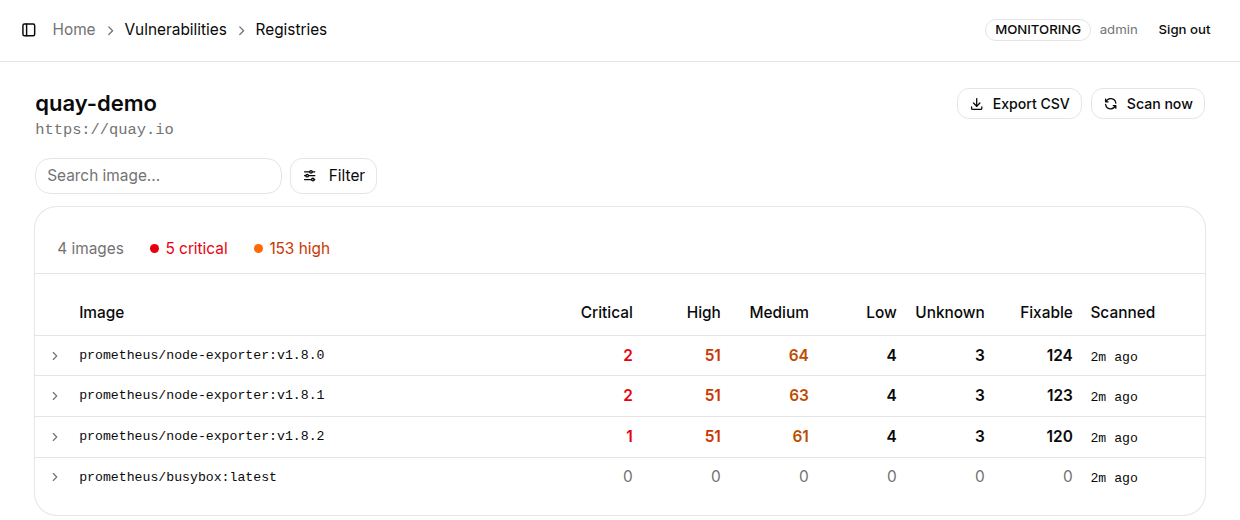
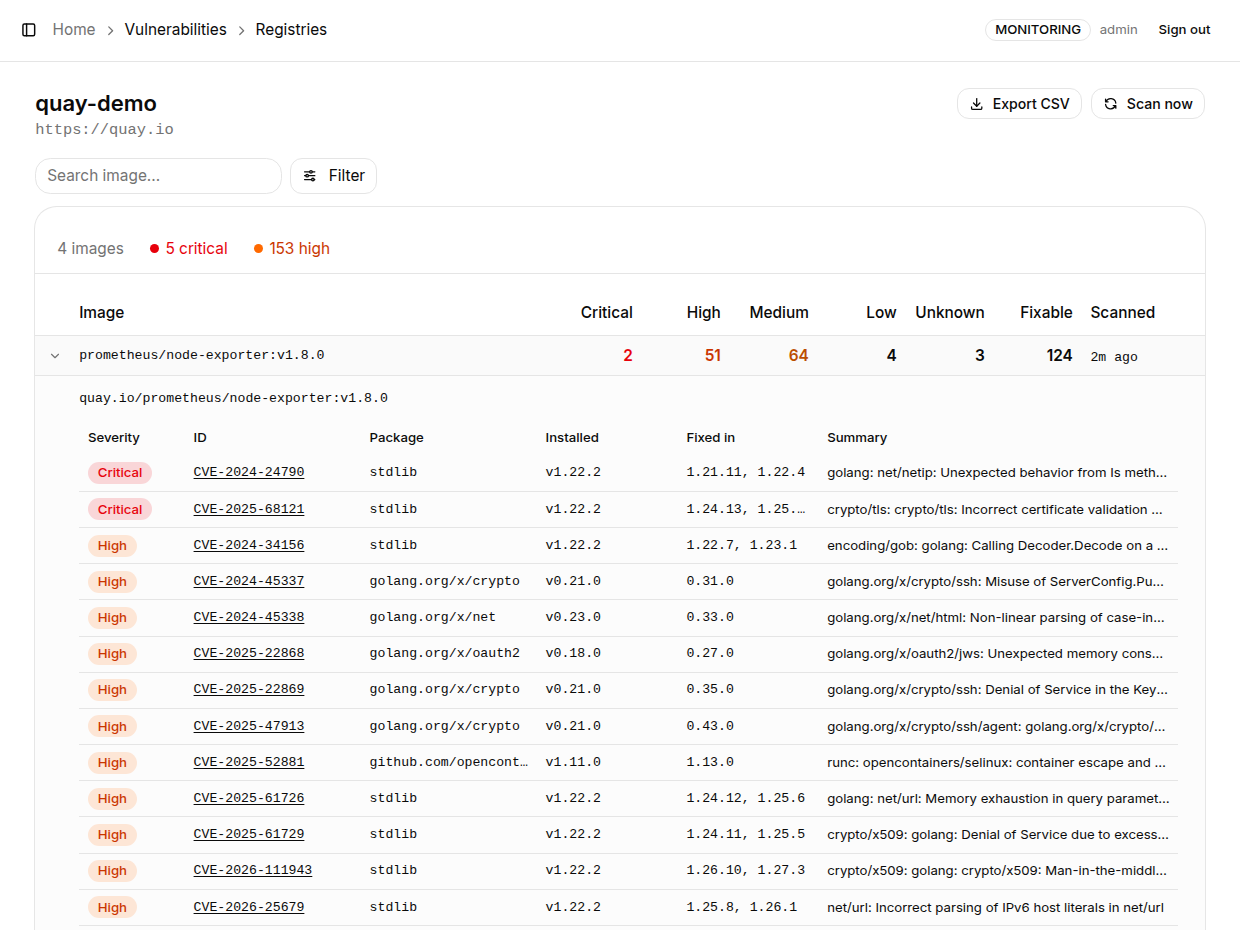
Clicking into a single registry shows each image's Critical / High / Medium / Low / Unknown / Fixable counts and scan time:
- Expand an image to see the finding details, in the same layout as the Workloads page and likewise ordered worst first (v0.62.1+)
- Search with Search image...; filter with Severity and Show only (
Fix available,Scan failed) - Export with Export CSV
A Failed Scan Is Not Clean
- When a single image's scan fails, it shows Scan failed with "-" for counts, expanding it shows the reason Trivy reported, and it is counted separately in the
Failedcolumn; it is not treated as an image without vulnerabilities - When the registry contents cannot be listed, or the scan Pods cannot run (for example an image cannot be pulled), it is the registry that shows Scan failed with the reason, and it is retried within the hour instead of waiting for the next full interval
Credentials and Data Retention
- Credentials are stored in K8s Sentinel's data directory together with the other settings and are never sent back to the browser. A scan Pod reads the credentials from a Secret that exists only for that Pod, and only as the login for that registry host, so the password is never written into a Job and never sent to the registry Trivy downloads its database from
- Changing a registry's URL requires entering the password again, so that a saved password cannot be redirected to another host
- Settings and scan results are stored in the data directory (
registries.jsonandregistry-scans/). With persistent storage mounted they survive a restart; on the defaultemptyDir, a restart clears the registry settings and results, see Persistent Storage (PV / PVC) - Permissions: Viewers can view the results; adding, editing, deleting and starting scans are limited to Admins, and are all recorded in the Audit Log
Prerequisites
deploy/sentinel.yamlis from v0.62 or later: its Rolesentinel-registry-scanlets K8s Sentinel create scan Jobs insentinel-system; without it scans fail with a permission error- If Trivy Operator is installed, it has to be upgraded with the current
deploy/trivy-operator-values.yamlso that the operator does not in turn scan these scan Jobs, see Installing Trivy Operator - Air-gapped clusters need the
TRIVY_IMAGE,TRIVY_DB_REPOSITORYandTRIVY_JAVA_DB_REPOSITORYenvironment variables set, also covered on the page above; an offline installation sets them for you