Form Editor
Overview
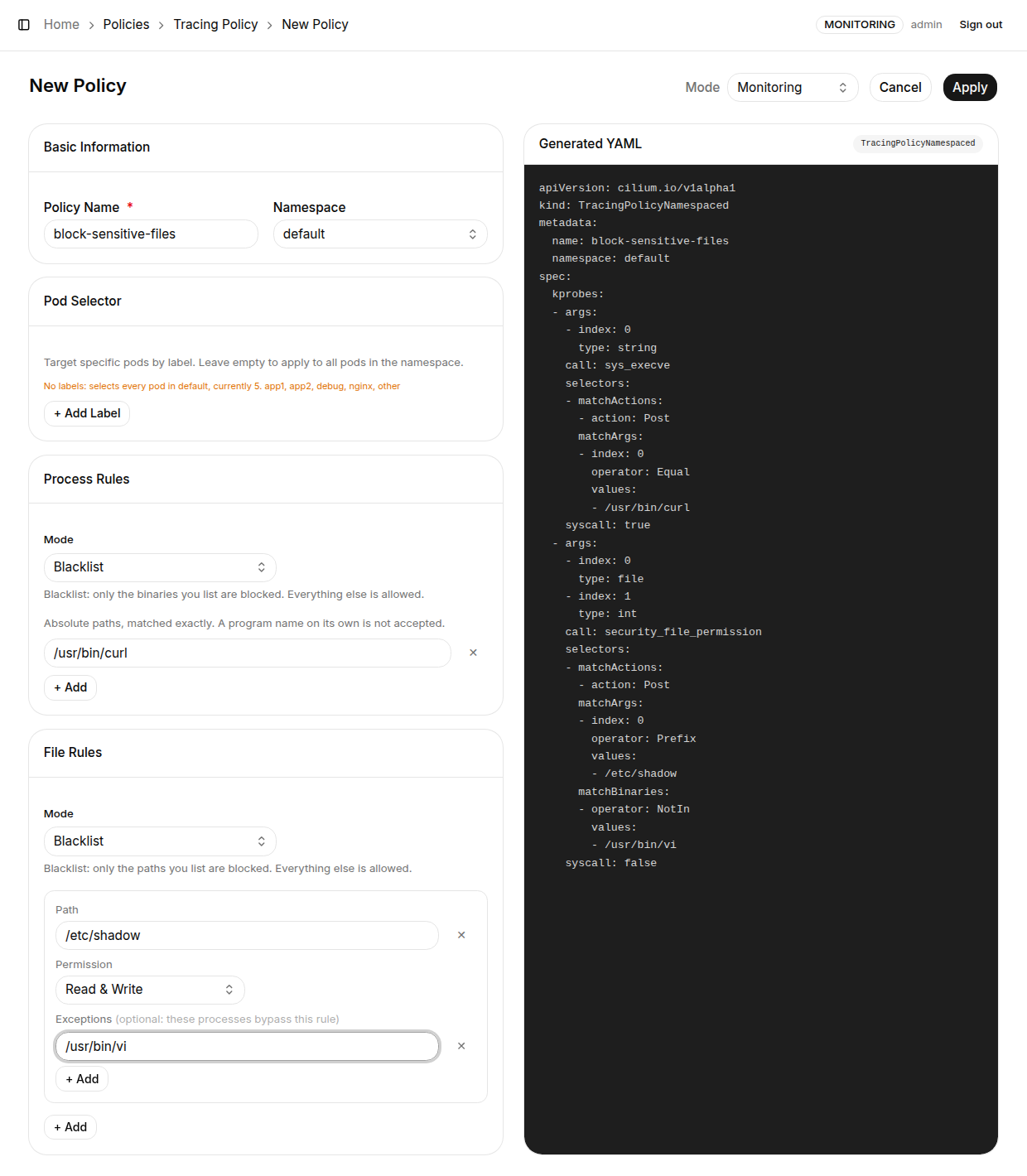
The form editor provides a graphical interface for configuring the three sections of a TracingPolicy - Pod Selector, Process Rules, and File Rules - without writing YAML by hand. The Generated YAML panel on the right updates live as you edit the form, so you can verify the resulting TracingPolicy at any time.
Click "+ New Policy" on the Tracing Policy list page to open the form editor; click "Edit" on an existing policy to edit it in form mode. If you prefer writing YAML directly, use "+ New YAML" instead (see YAML Editor).
Pod network access rules have been removed from the TracingPolicy form - they are now managed by Network Policy (Cilium Network Policy). The one exception: process-bound network control (e.g. "kill any binary outside an allow-list the moment it opens an outbound connection") cannot be expressed in CNP, which judges by workload identity and cannot distinguish processes inside a pod. Such a tcp_connect kprobe can still be written in the YAML editor; a policy carrying network kprobes opens as YAML on edit so a form save cannot drop those rules.
Basic Information
| Field | Required | Description |
|---|---|---|
| Policy Name | ✅ | TracingPolicy resource name; must follow Kubernetes naming conventions (lowercase letters, numbers, hyphens) |
| Namespace | ✅ | Choose a target namespace (creates a TracingPolicyNamespaced), or choose cluster-wide to create a cluster-scoped TracingPolicy |
Execution mode: the Mode dropdown in the top-right corner sets the policy's execution mode:
| Mode | Description |
|---|---|
| Monitoring | Records detected events only; nothing is blocked |
| Protect | Records events and actively blocks violations |
Pod Selector
The Pod Selector section narrows the policy to specific Pods instead of every Pod in the namespace.
Steps:
- Click "+ Add Label" to add a key=value label condition
- Multiple labels combine with AND logic (a Pod must match all labels to be governed by this policy)
- Leave the selector empty to apply the policy to every Pod in the namespace (or the whole cluster for a cluster-wide policy)
While editing the Pod Selector, the form shows which pods the selector matches right now. It turns red when nothing matches (usually a label typo) and amber when an empty selector is about to govern every pod - catching a mis-aimed selector before Apply.
Process Rules
Process Rules control which programs (binaries) may run inside the Pods.
Mode options:
| Mode | Description |
|---|---|
| Whitelist | Only the binaries you list are allowed to run; everything else is blocked |
| Blacklist | Only the binaries you list are blocked; everything else is allowed |
Steps:
- Choose Whitelist or Blacklist from the Mode dropdown
- Click "+ Add" and enter an executable path, e.g.
/bin/bash,/usr/bin/curl - Add as many paths as needed
Paths are absolute and matched exactly - a program name on its own (e.g. curl) is not accepted.
How it works: Tetragon hooks the sys_execve kprobe in the kernel to intercept every exec syscall. Whitelist mode matches with the NotEqual operator (anything not in the list is a violation); Blacklist mode uses Equal (anything in the list is a violation). Monitoring mode records violations; Protect mode blocks the execution.
File Rules
File Rules control filesystem access from the Pods. Since v0.52 they have the same Mode switch as Process Rules:
| Mode | Description |
|---|---|
| Blacklist (default) | Only the paths you list are monitored/blocked; everything else is untouched |
| Whitelist | Only the paths you list are excluded; every other file access is monitored/blocked |
The two modes present different forms:
Blacklist: one rule per path, each with:
| Field | Description |
|---|---|
| Path | The file or directory to restrict (e.g. /etc/shadow, /root/.ssh); matched by prefix, so a directory covers everything under it; must be absolute |
| Permission | Which access to restrict: Read & Write / Read only / Write only |
| Exceptions | Optional; absolute executable paths of processes that bypass this rule (e.g. a backup agent reading a restricted directory) |
Whitelist: a single exclusion group (opened with "+ Add"), shared by the whole set:
| Field | Description |
|---|---|
| Excluded paths | Paths that are not monitored; everything else is |
| Monitored access | Which access kind is monitored at all: Read & Write / Read only / Write only (Read only means writes are not monitored anywhere, not "reads allowed") |
| Exception processes | Optional; these processes' file access is not monitored at all |
How it works: Tetragon hooks the security_file_permission kprobe (an LSM hook). Blacklist emits one Prefix selector per path (Tetragon ORs selectors); Whitelist emits a single selector with one NotPrefix over all excluded paths and one matchBinaries: NotIn over all exception processes (since v0.52.1: multiple OR-ed selectors would make the exclusions silently ineffective, so they must be merged into one set).
YAML using shapes the form cannot express (mixed Prefix / NotPrefix, the Mask operator, multi-value permissions, etc.) keeps opening in the YAML editor on edit, so a form save cannot rewrite it (v0.52.4).
Generated YAML (Live Preview)
The Generated YAML panel on the right shows the TracingPolicy YAML produced from the form in real time, with the resource kind (TracingPolicy or TracingPolicyNamespaced) badged in the corner. Every form change updates the preview instantly, so you can confirm the final manifest before applying.
When everything looks right, click "Apply" in the top-right corner to create (or update) the policy. The Tetragon Agent loads the new rules within seconds.